
You can get these and dozens more paper textures for free (1K versions) in the paper texture catalog here.
It’s pretty straightforward, just browse, pick a paper you want and tap the ‘Download Procreate AS 1K’ button to download the layered .Procreate file, but if you need help, full detailed step by step video and text instructions are below.
The jpegs can be downloaded without logging in but you will need to sign in (free) for the Procreate templates.
Continue scrolling past the video tutorial for a step by step text instructions to download the free Procreate Paper texture templates.
How to download free Procreate Art Surfaces
- Filter the paper texture library to show only Procreate Art Surfaces.
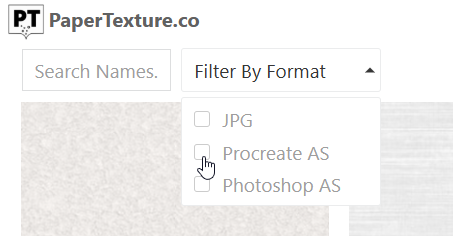
- When you find one you like (Tip: Hover or tap on the thumbnails to see a detailed closeup of any texture) open it by tapping on the paper name, then tap the download button for the 1K Procreate Art Surface beneath the Paper Texture you want to download. It looks like this:
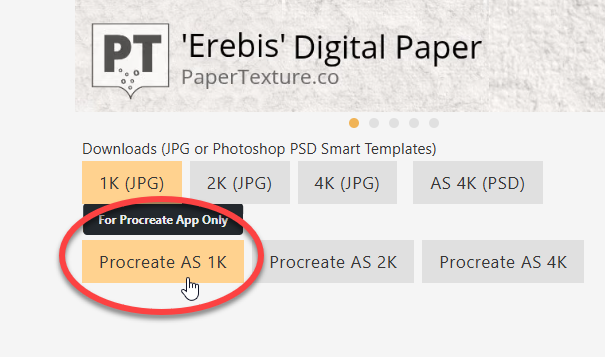
Note: You must be logged in for the download button to be active. join for free here. If you are logged in and the button is still gray, reload the page. - Open the Procreate file you downloaded. It will open in Procreate. If you don’t see it after you download it, open the Files app on your iPad and it will be at the top. Tap on it there to open it in Procreate.
- Start painting in the Artwork layer and the paper texture surface lighting and shadow will be applied “Live” while you paint in it.
If you get stuck, check the Help page for answers and tutorials and if that doesn’t solve it for you get in touch and I’ll help you out.
How to Get Free Procreate Art Surfaces (Video Tutorial)
What is an Art Surface? Why not just use the 1K Jpeg paper textures?
The Art Surfaces are ‘smart’ paper texture templates for Procreate (or Photoshop) that add paper surface texture lighting and shadow to your artwork live as you paint in them whereas the paper texture jpegs are flat images that you paint on top of, but they don’t apply on top of your artwork like the Art Surfaces do (unless you layer them yourself).
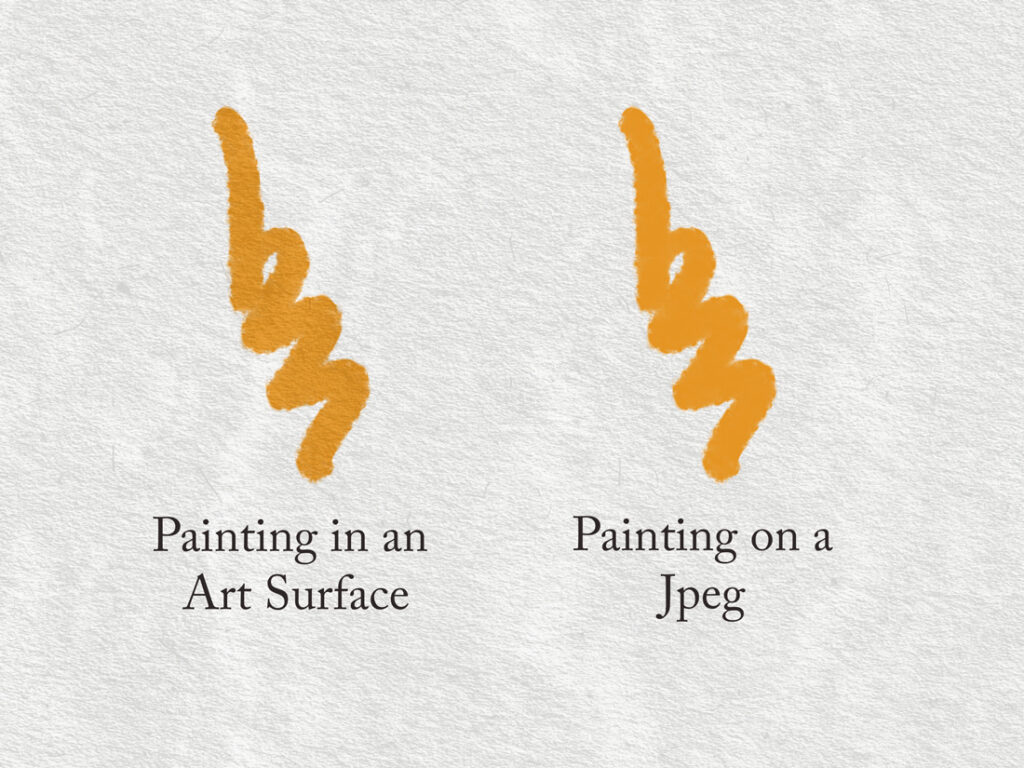
They have several advantages like a separate lighting and shadow layers that you can tweak individually to get just the right paper texture effect your piece needs.